Showing posts with label Review. Show all posts

Wednesday, November 13, 2013

Mini Blog: Free News Feed Reader

Feedly is an RSS news reader available on the internet, android phones, and tablets. Instead of going to multiple websites to gather your news, you just visit Feedly. It is integrated with Twitter, Facebook, Google+ (kind of...you habve to go through one thing to the other to get them) and Evernote. There is no search or analytic option. I don't really like Feedly, so I have found an alternative news feed reader. And that alternative issssss........


Netvibes! There is a free version and a paid version, as with most software these days. With the free version, you can do all things you could with Feedly, as in subscribing to different news generators, and more. You can create your own dashboard on the site, which you can arrange to your own liking as I have done below.


Contrasting Feedly, there is search capability and an analyzing option. Along with these features, you can also add your email, Twitter, Facebook, and Google+ (in an easier fashion than on Feedly) onto your dashboard. You can also add a multitude of other widgets to the dashboard, like weather for instance, so you can do more while catching up on the news. It also uses more pictures and features from the news websites than Feedly does, creating something better to look at.

So Netvibes over Feedly in my book.


Sunday, October 20, 2013

Photo Manipulation

Today I will be using some programs that edit photos. All of which are online and free for use by everyone. Enjoy!

BeFunky:


Okay, I don't have vision. I don't edit with a purpose. I just wanted to make a dramatic change. BeFunky allowed that with their many color altering features. Also they have a lot of frames and other things to put on the image. But you can look through all my blog and see my one true love...and that is a good collage..which BeFunky can make for you. 


Here, I've detailed a couple of the things you need to know when making a picture collage. I will continue to use this website and depart from my old site. (You'll see in almost all of my posts I've made collages from a site called Fotor) I liked the collage making more than the picture editing capabilities to be honest. And you'll see I've use BeFunky to make the rest of my Before and After pictures in the post.


Photoshop Express Editor:


This program is based off the software Adobe Photoshop, which is a paid software. So this website will not have all the features of its parent software, but to be free it does have much to work with. There are the basic tools to crop, resize, and altering the saturation. Then there are some other tools on the bar that can edit photos....as such:


In the photo I edited, I tried to change the color of the car to a brighter blue and (while sloppy) I did such. The website offers sharing with Facebook, Flickr (reviewed in my last blog about "Photo Sharing"), and Picasa along with many others. There is an online community attached to the website that allows you to surft through some other galleries and rank the pictures because you are given 2 GB of free space. I found that large pictures are easily uploaded but for the time being they only upload .jpeg images which is a bit of a con. I actually have the app for this downloaded on my phone now, so I will use it from time to time as it's really easy.

PicMonkey:


I really liked editing on this website. The site has a bunch of themes you can use to edit pictures. For which I used the witch one to edit this girl's picture because she looks purely witchy even before adding anything.


But also had the basics, along with some add ons and allowed collage making...


A lot of the better features are for "royal" users though. While the site is fun and theme filled, I would not pay or even make a username to get into it. So I'd stick to the free version but even that does not offer much to edit pictures.


Psykopaint:


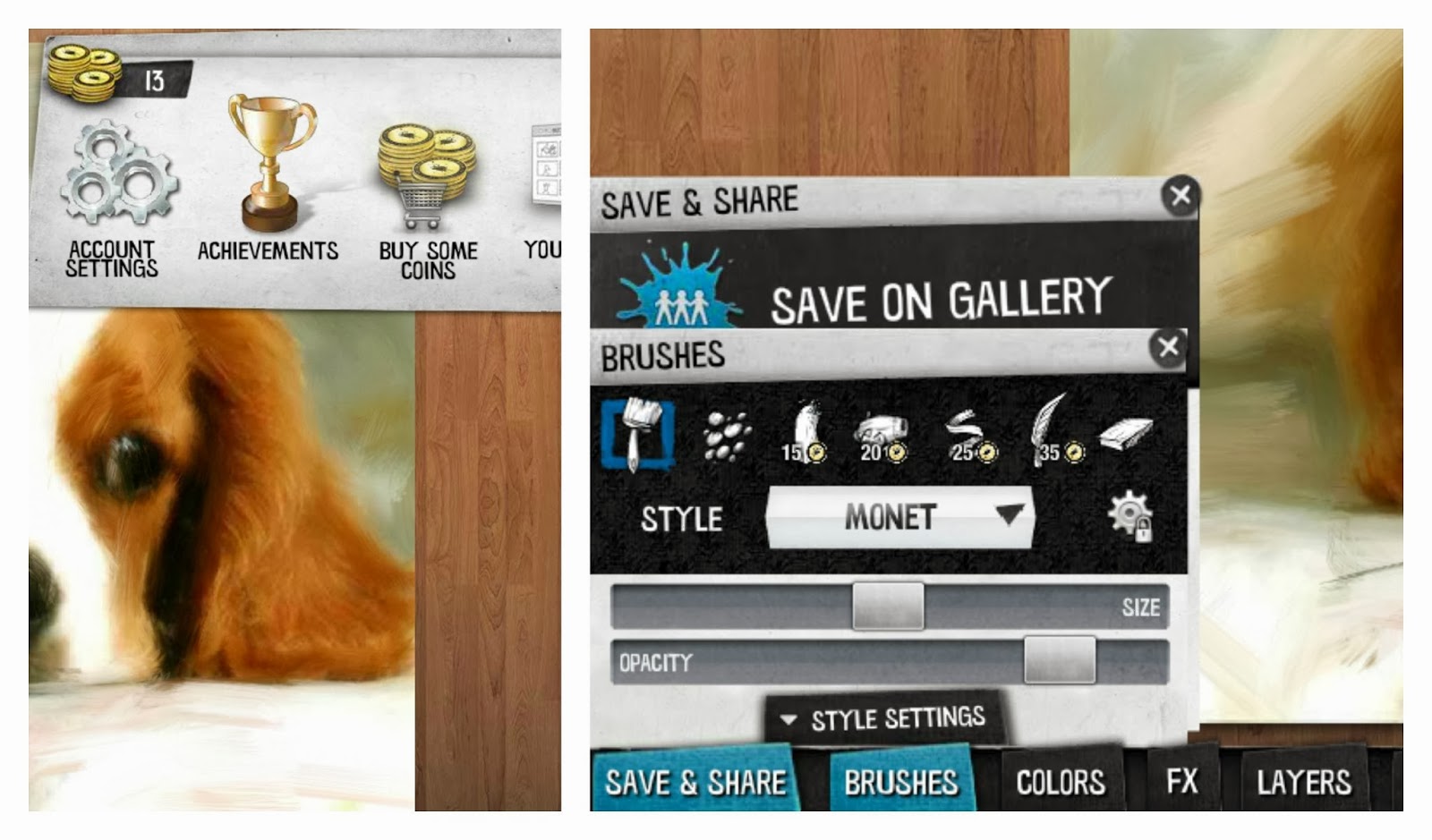
Am I tragically talented and very famous for my paintings yet? Psykopaint is a new kind of online painting application. It allows you to brush over your photos or even create pieces on a blank canvas. It's a little hard to get the hang of when you start. You have to follow the edges of the focal points in your photo. If you have a lot of stuff going on in the picture this can be hard. The site gives you coins that you receive after reaching certain "goals" on the site. These are to get brushes or other features. 


And this is to make you use the site more, so you can get more out of it. It's pretty cool, but you have to have patience and determination to deal with it.


Sumopaint:


On hearing the title of this website, I thought it would be another version of Psykopaint, but it's not. You can actually download the software and use it on your desktop. I just used the online version though to get this picture. I felt like I did not reach it's full potential so I found some examples of what could be done on the website as well as displayed the interface of the website.


The toolbar is much more extensive than seen on any of the editors used in this post. I used the lasso tool for the picture I edited above. Along with letting you paint, like on Pyskopaint, the site also lets you stamp cut out images. There's also a really neat symmetry tool that lets you make spiral-y kaleidoscope pictures. 


Tuesday, September 10, 2013

Gmail Mini Review

I have been using Gmail for almost 3 years now. I believe it to be one of the best web-based email servers that I've ever used. Much more than just that-- I can not only email, but even chat and video chat at any given moment if need be. It also has a feature that allows me to cancel any message within a few seconds after sending if there is an error, that I haven't found on any other server and it has come in quite handy for me. Also, I feel as if the filtering of emails is better on Gmail than on any other site. I don't have to even see pesky spam emails because of custom labels and filtering on my Gmail. All of these are for free, as opposed to other sites that charge for subscriptions. As for five tips, I would suggest the following:

1. To keep any message that may be important in the future or maybe even required for future reference, easily keep the message marked without losing it in your inbox by simply "Starring" the message. This adds it to a labeled link that will have the message that you marked minus the digging through newer emails for it.

2. Go into the Settings tab to change the theme. It provides a creative and unique background for your personal email, which creates a nice change from a bland white background that's typical from other email servers.

3. As I mentioned, I liked the capability of filtering messages. To do this, when opening an email look in the upper right corner of the email and you will see a drop down arrow to the right of “Reply“ option. Click it, and look down to see the option “Filter messages like this“. VoilĂ !

4. If you haven't starred a message and can't seem to find it within your inbox, or frankly do not feel like searching - make things easier by searching for the email! Use the search bar on the Gmail page by typing in a sender, topic, or date and surely enough the message will pop up.

5. If using Google Chrome, you can easily drag pictures into a message from your desktop or folders on your computer. The same goes for word documents or other files you may want to upload into an email message. First you go to Settings > Labs > Inserting Images Lab to get this feature.